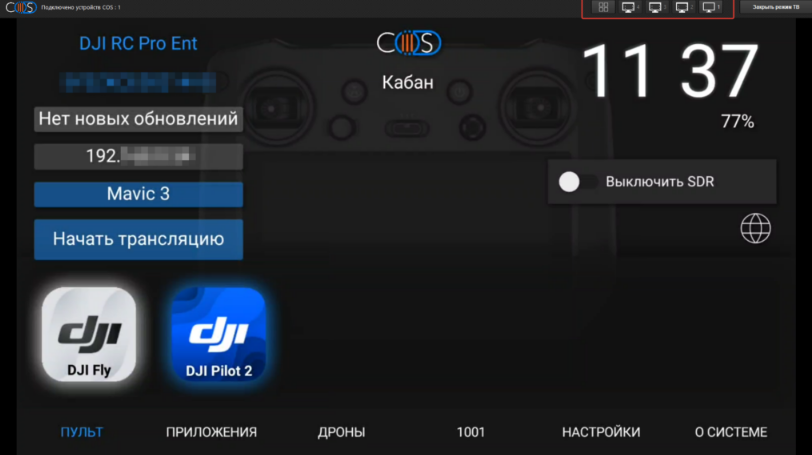
The COS enables real-time video streaming from a DJI remote controller to Android, iOS, and Windows devices via the Solar cloud service. The connection can be established over a local network or the internet. The standard license supports concurrent streaming to 2 devices, while the Companion PRO license extends this capability to up to 8 devices.
On tablets and mobile devices, all touch inputs on the remote's screen are fully replicated. On Windows PCs, control is executed using the standard mouse interface.
Streaming Modes:
- Auto – the program auto-finds devices and adds their IPs for streaming.
- Manual – enter device IP addresses manually in the Companion settings..
Video Guide
Connect the remote to the local network via the COS adapter or Wi-Fi.
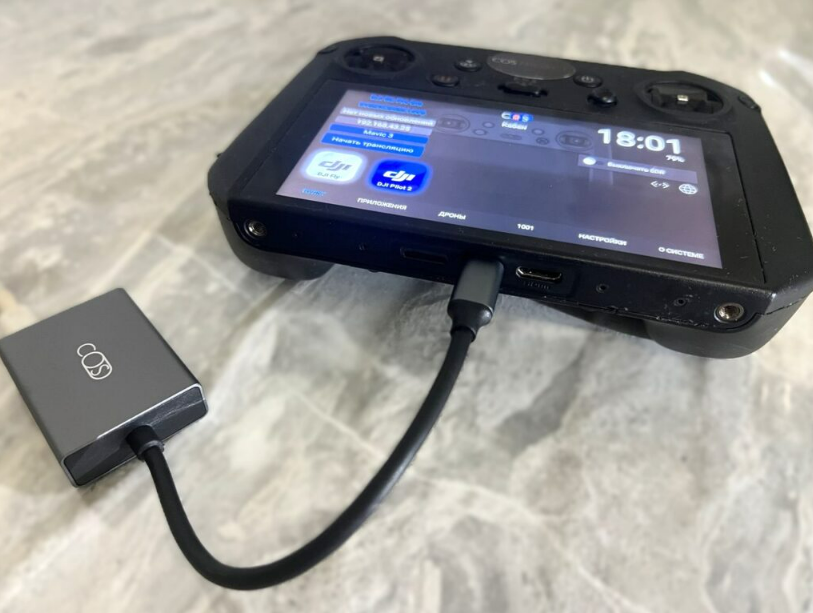
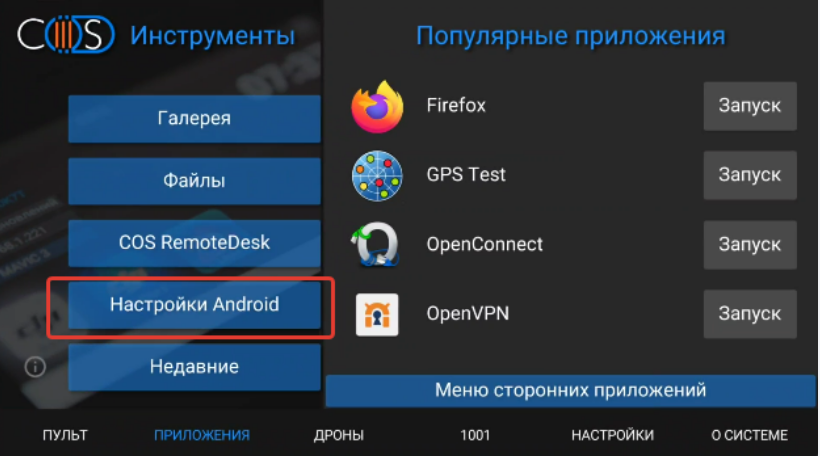
To connect vie Wi-Fi, go to Apps → Android Settings → Network & Internet → Wi-Fi.
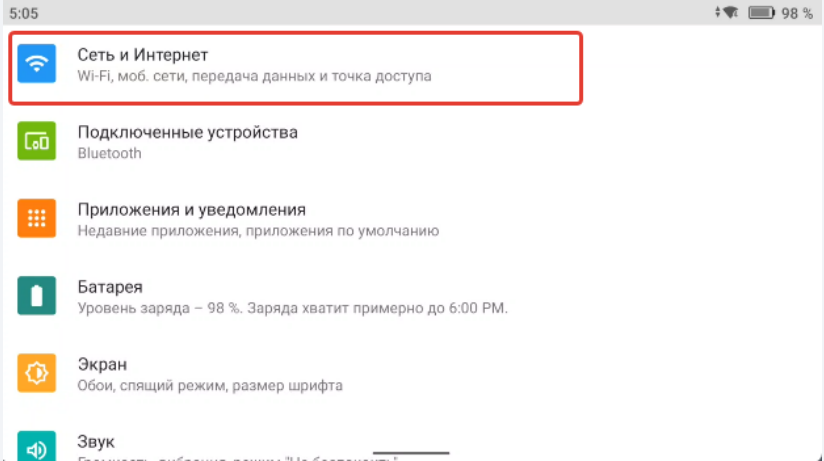
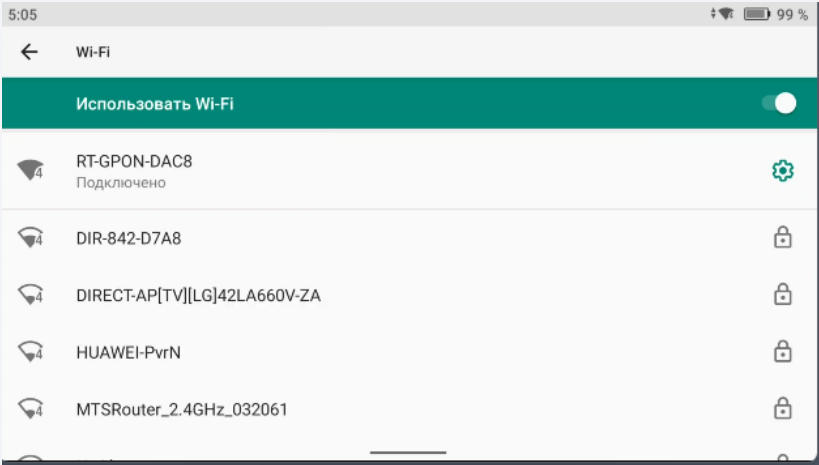
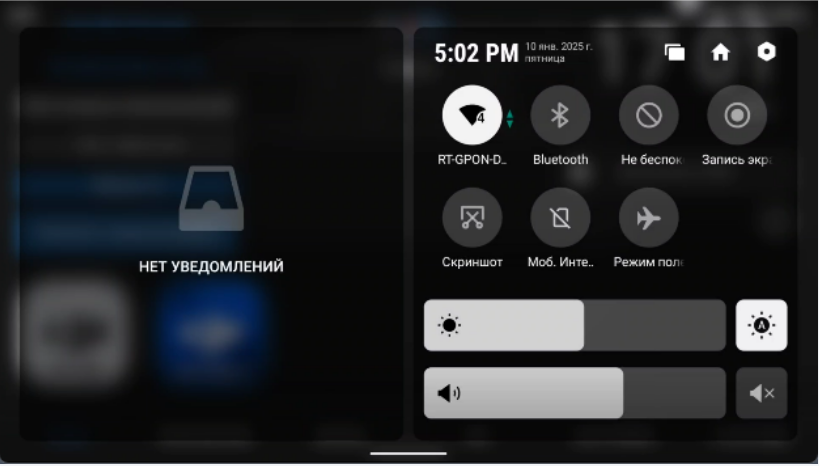
Quick method: Open the notification shade (swipe down or press Back + 5D down), then press and hold the Wi-Fi icon.
Attention: The PC and the remote must be on the same local network.
On your Windows device, launch Companion (Companion S)
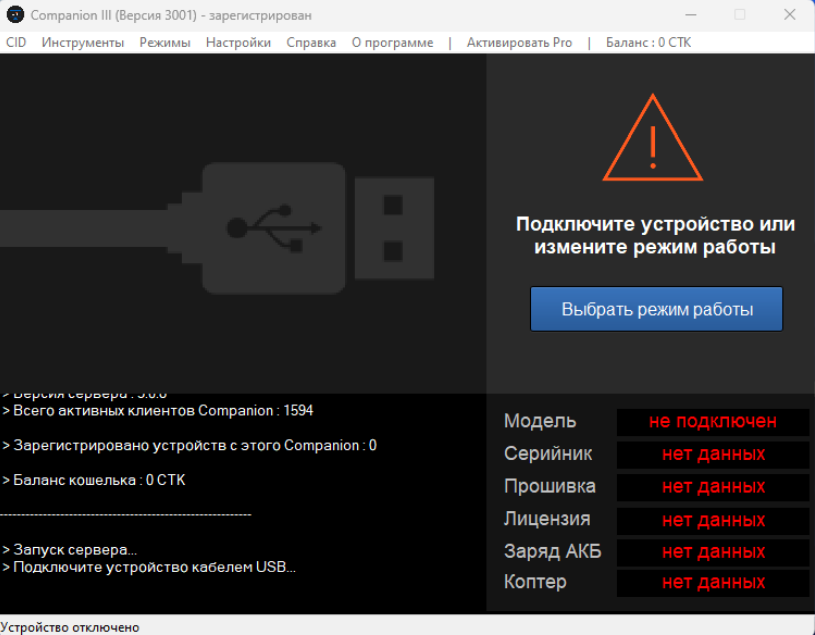
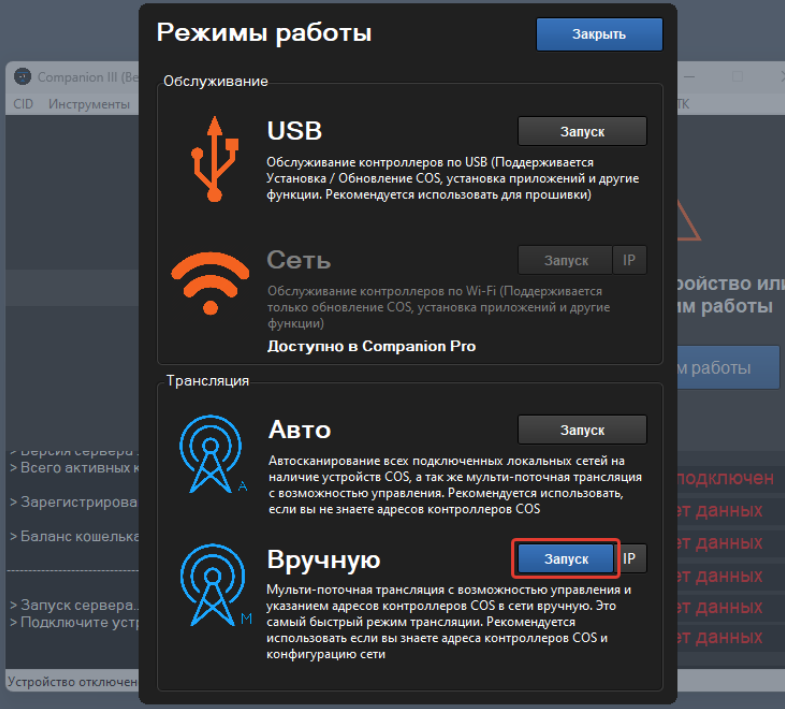
Click Select Operation Mode, then in Streaming → Manual, click the IP button.
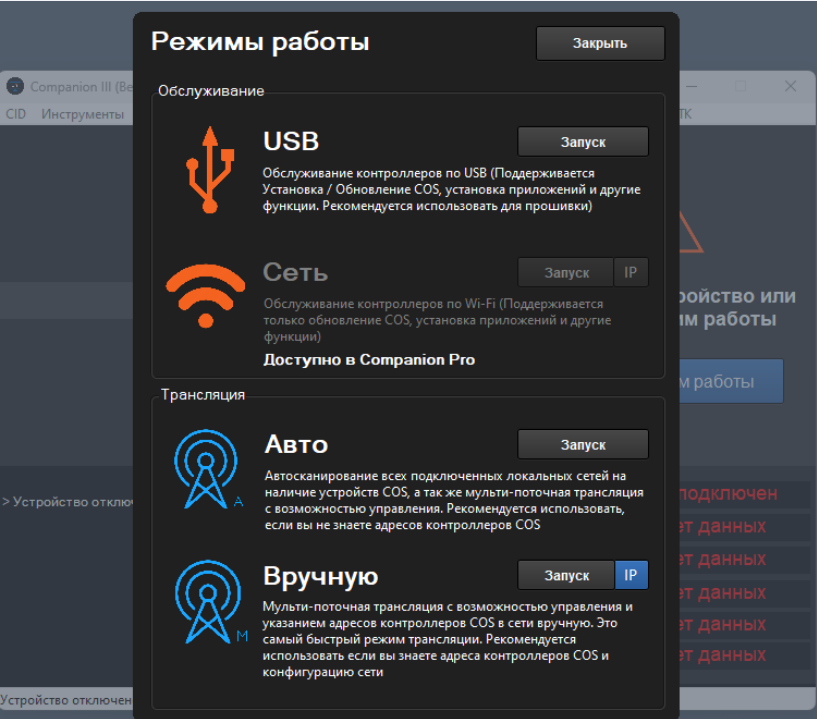
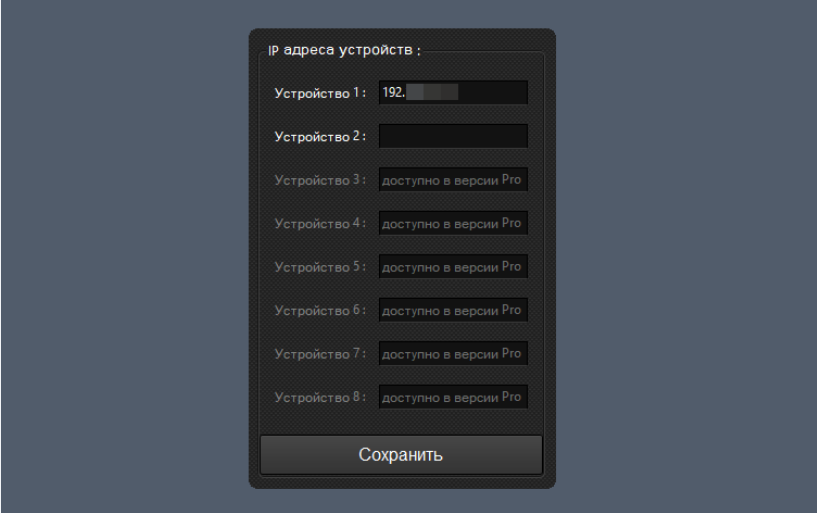
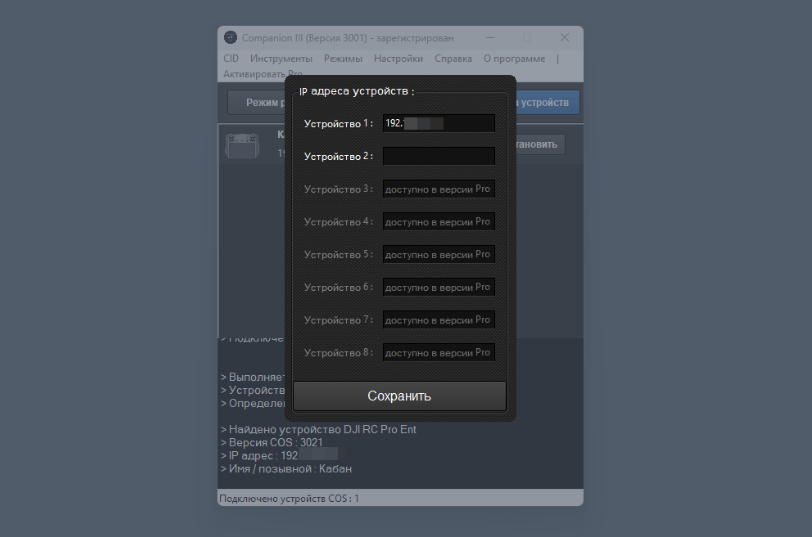
In Auto mode, the IP address fields are populated automatically with devices detected on the network. In Manual mode, you must enter the IP addresses of the devices from which you wish to stream. To do this, select IP and enter the remote controller's details in the dialog that appears.
The recommended configuration for streaming is Manual mode. Enter the IP addresses of the required remote controllers in the designated fields.
Proceed by entering the IP addresses for the remote controllers.
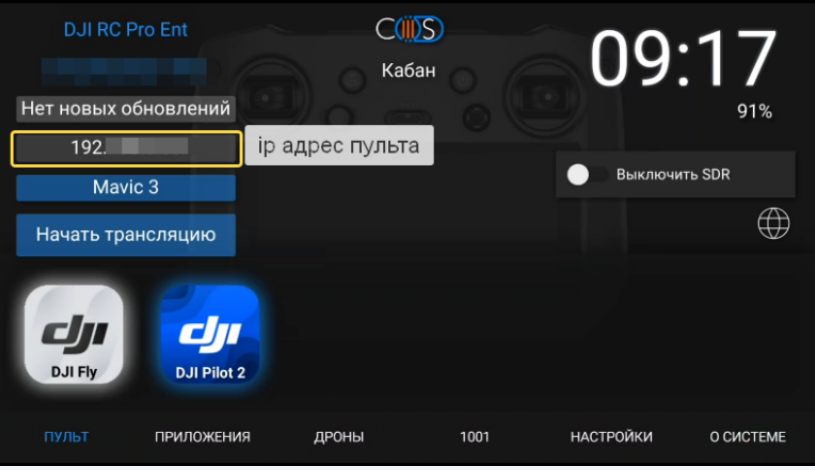
The IP address for each remote can be located on its main interface screen.
Click Save to confirm the settings.
Click Save to confirm the settings.
Next, click Start – this will initiate a program restart.
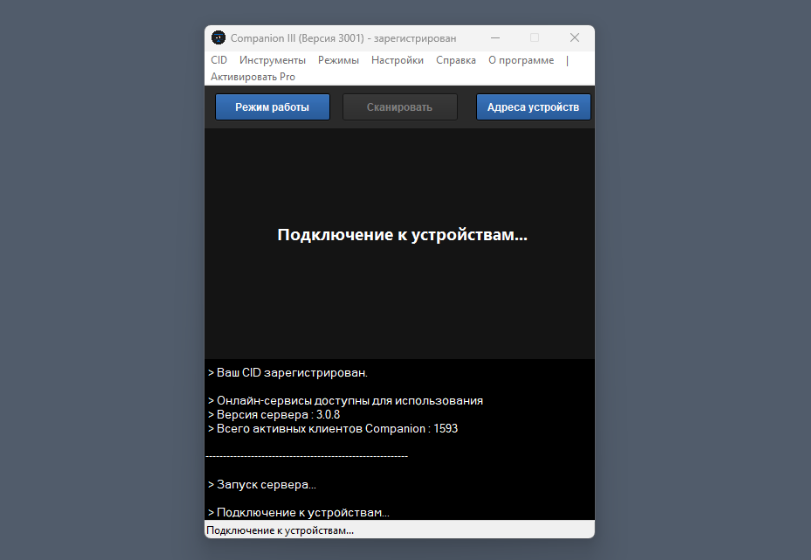
Following the restart, the streaming and remote control interface windows will open automatically.
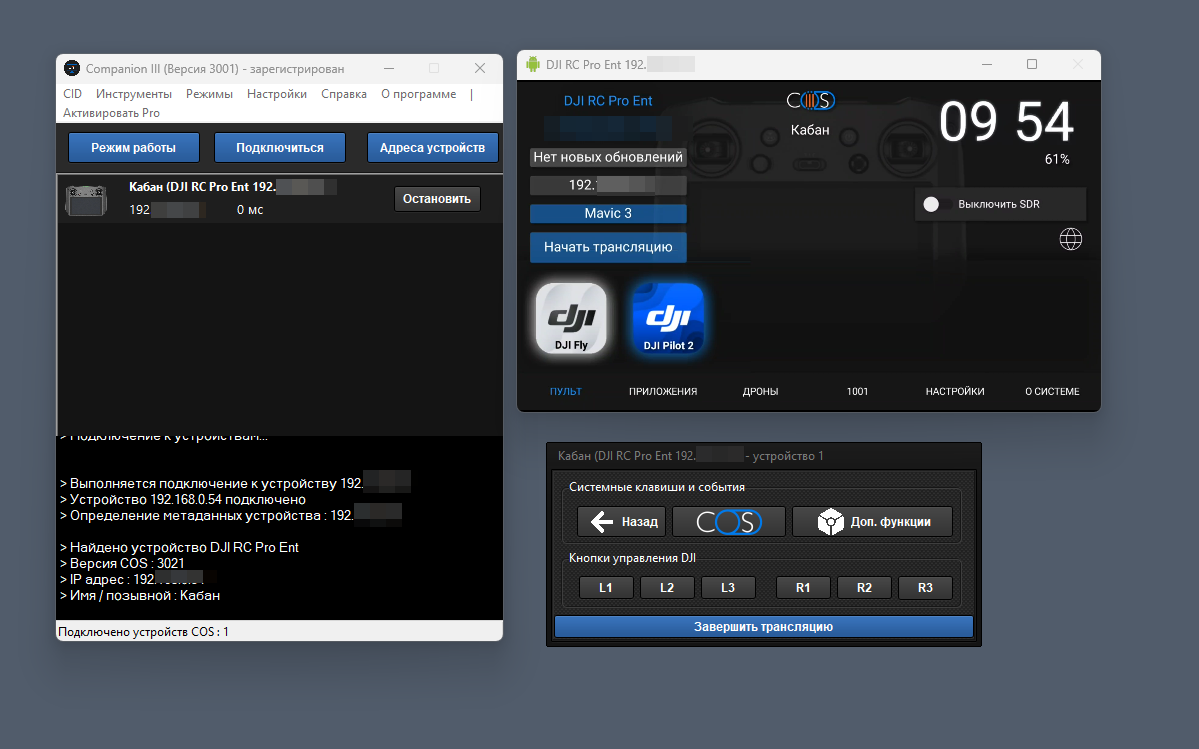
To configure additional remotes, select Device Addresses and input their respective IP addresses.
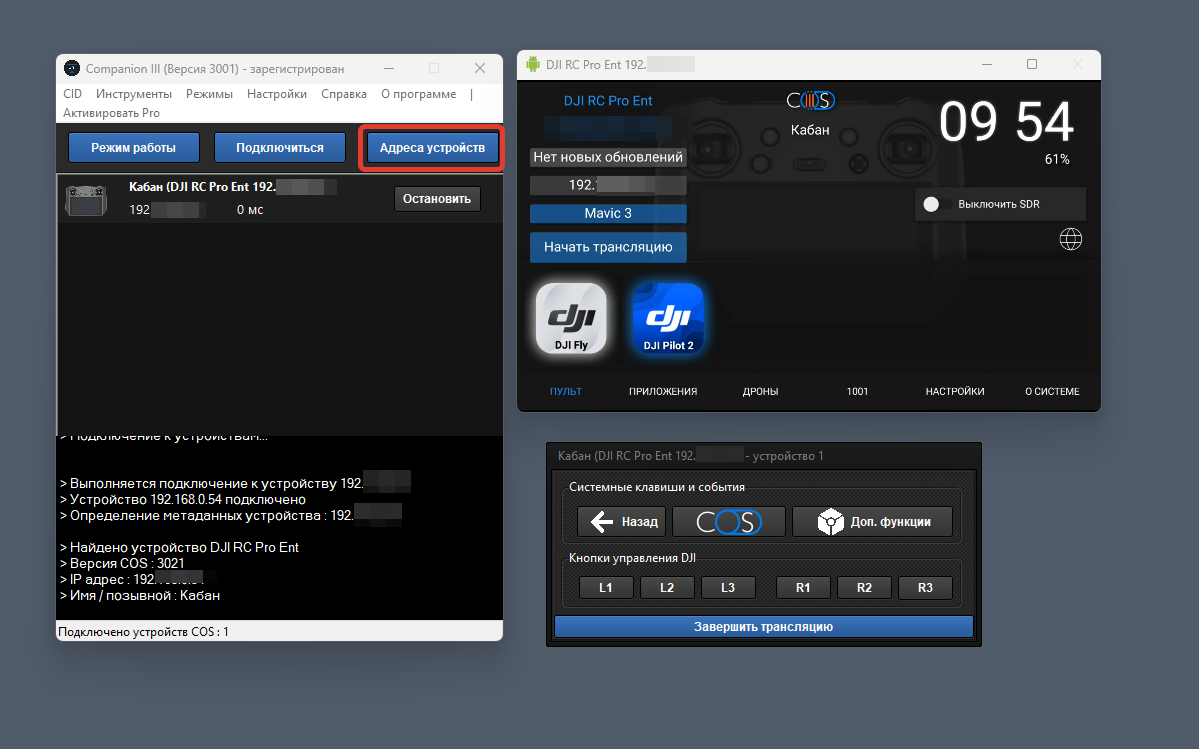
The standard Companion license allows concurrent streaming to 2 devices, whereas the Companion PRO license extends this capability to 8 devices and additionally includes TV Mode functionality.
To enable TV Mode, navigate to Administration → TV Mode.
To enable TV Mode, navigate to Administration → TV Mode.
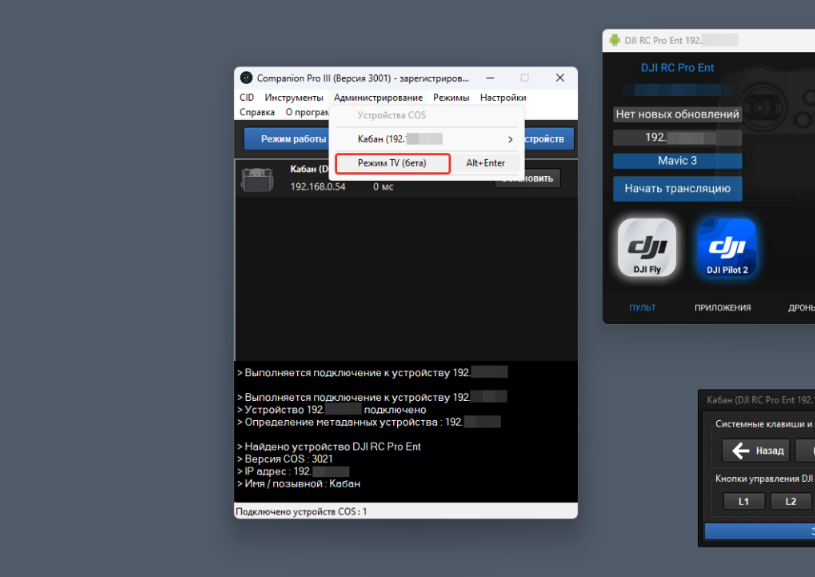
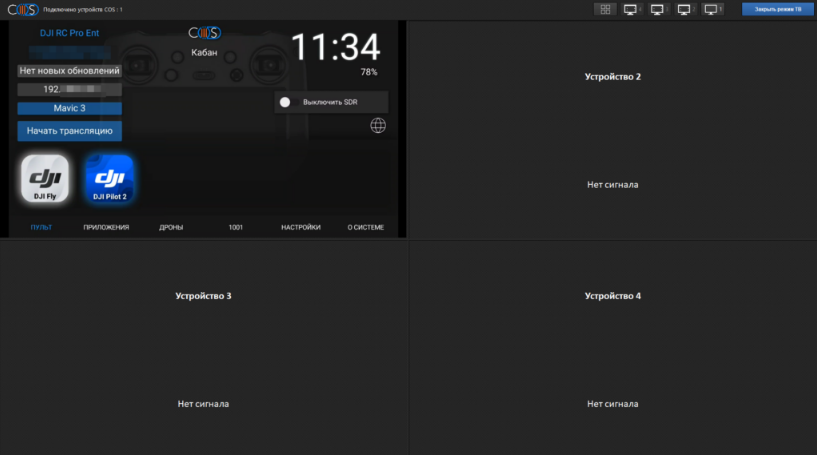
To activate full-screen display, utilize the screen number buttons located in the top-right corner of the interface.