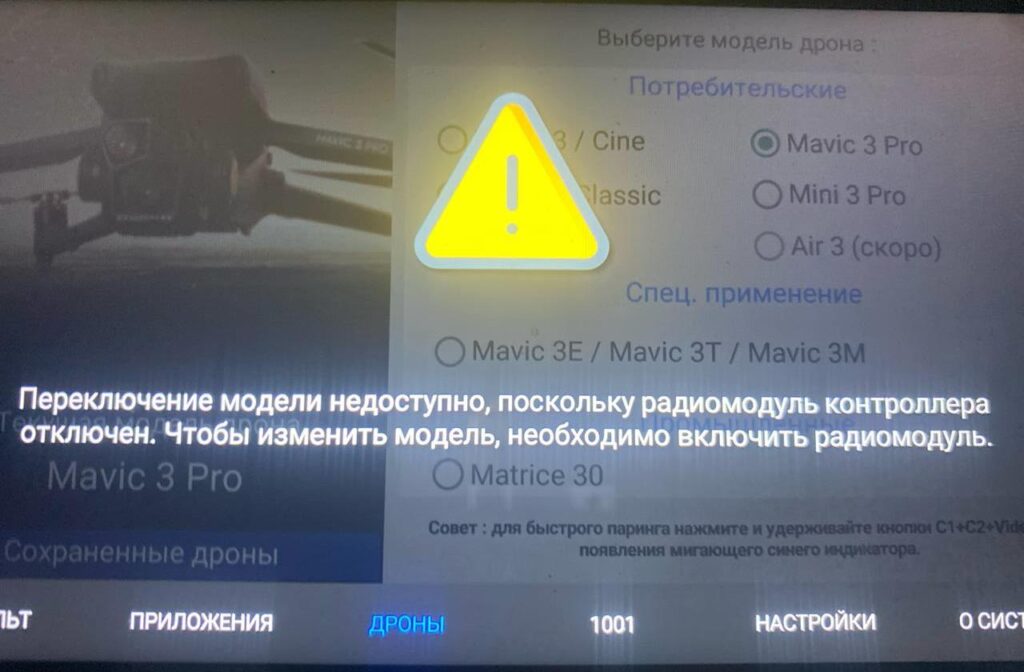
Follow this systematic guide to quickly diagnose and fix a Radio Module Error.
Key Steps to Resolve the Issue:
Check your SDR settings.
– Check the connecting cable or flat ribbon for any damage, bends, or loose connections.
Additional Recommendations
When to Contact Service
If the error continues after all these steps, contact a certified service center for professional diagnostics and repair.
Why Fixing Errors Quickly Matters
Radio Radio module issues can lead to lost connections, system malfunctions, and increased downtime. Regular hardware checks and timely firmware updates are essential for system stability and safety.
Key Steps to Resolve the Issue:
Check your SDR settings.
- On the ONE main screen, make sure the “Disable SDR” option is turned off. This is one of the most common causes of errors.
- Try selecting a different compatible model in the settings and test it. Sometimes errors occur due to hardware incompatibility.
- If the problem persists, perform a full firmware reinstall through the Companion app.
- If reinstalling didn’t help, proceed with these checks:
– Check the connecting cable or flat ribbon for any damage, bends, or loose connections.
Additional Recommendations
- Install the latest firmware for your hardware model.
- Check communication settings and make sure the radio module is compatible with your system.
- Turn off other wireless devices that might cause interference.
- If needed, perform a factory reset on the hardware.
When to Contact Service
If the error continues after all these steps, contact a certified service center for professional diagnostics and repair.
Why Fixing Errors Quickly Matters
Radio Radio module issues can lead to lost connections, system malfunctions, and increased downtime. Regular hardware checks and timely firmware updates are essential for system stability and safety.