Step-by-step guide to disabling Kaspersky antivirus
To fully disable Kaspersky protection, proceed as follows:
Right-click the Kaspersky icon located in the system tray (typically found in the bottom-right corner of the taskbar).
Select the option "Pause Protection" from the context menu.
To fully disable Kaspersky protection, proceed as follows:
Right-click the Kaspersky icon located in the system tray (typically found in the bottom-right corner of the taskbar).
Select the option "Pause Protection" from the context menu.
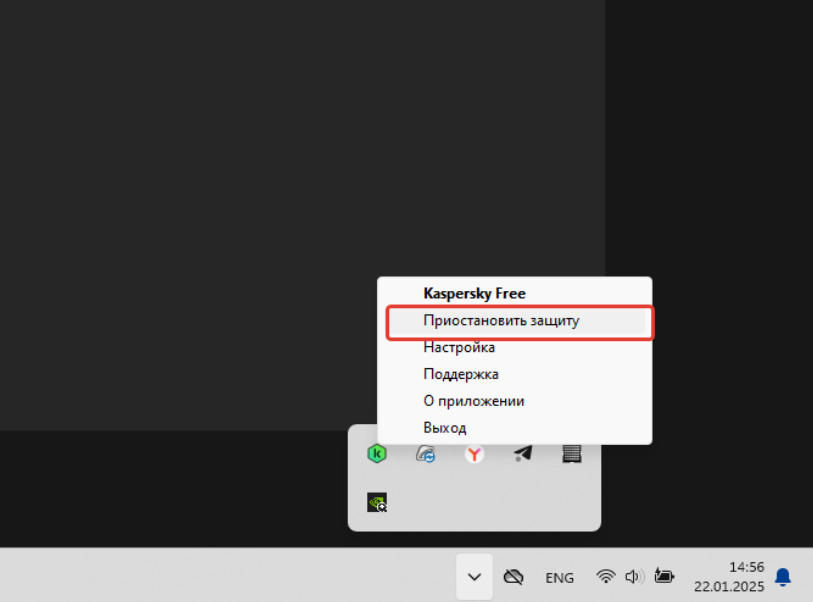
Specify the desired duration for the pause. To deactivate protection completely, select the indefinite "Pause" option.
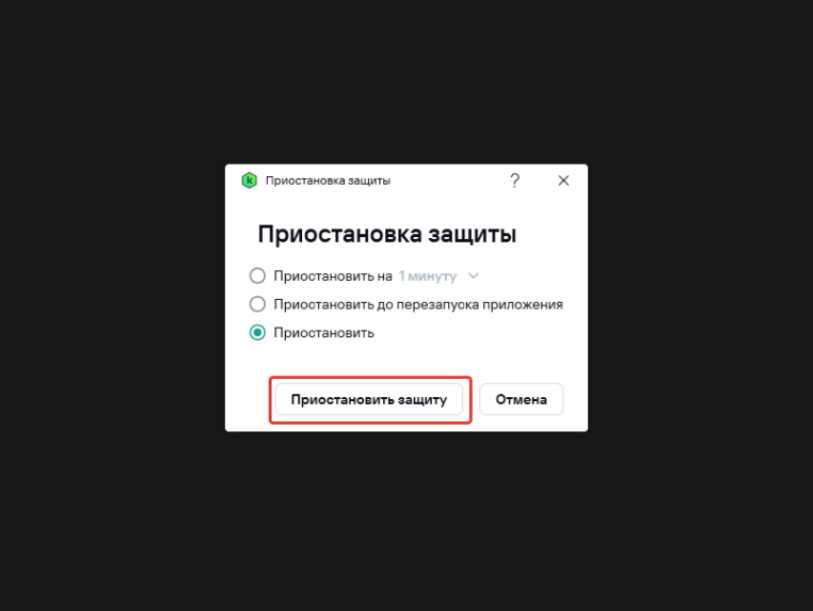
Confirm your selection in the subsequent dialog box by clicking "Pause Protection."
The antivirus protection will remain inactive until manually resumed. To re-enable protection, right-click the Kaspersky system tray icon once more and choose "Resume Protection."
Configuring Exceptions in Kaspersky
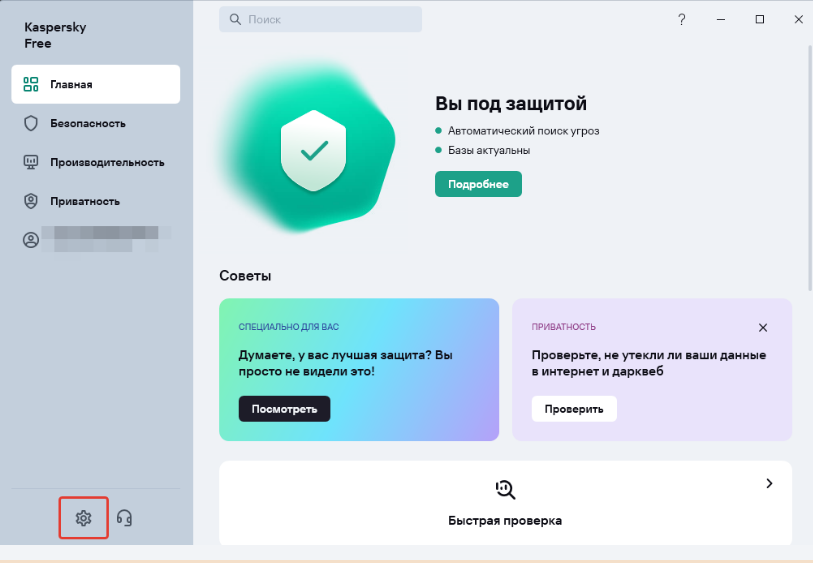
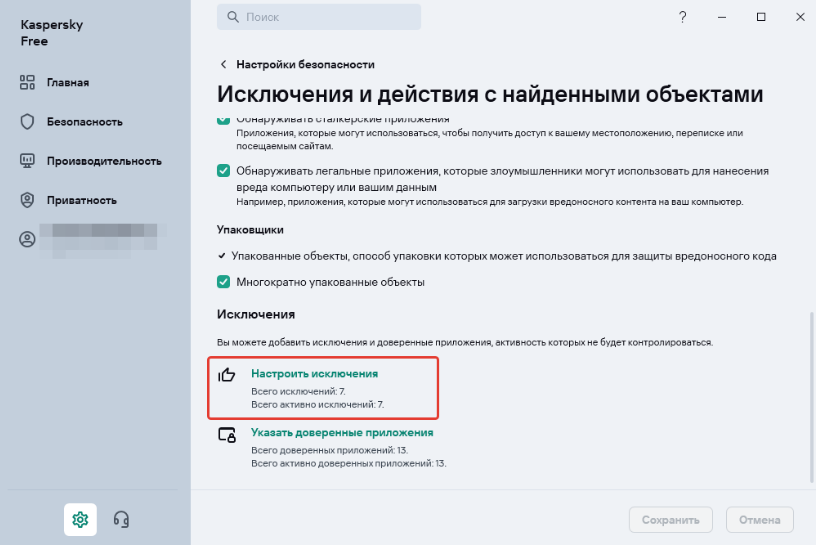
Open the main application window and navigate to Settings , indicated by a gear icon typically located in the bottom-left corner.
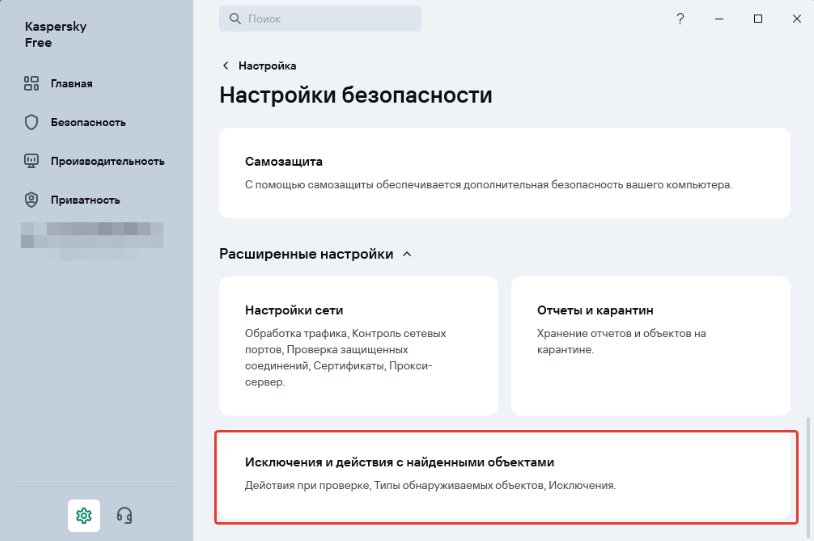
Select Security Settings, then scroll down to Exclusions and Actions for Detected Objects.
Click “Manage Exceptions” → the Exceptions window will open. Then click the “Add” button.
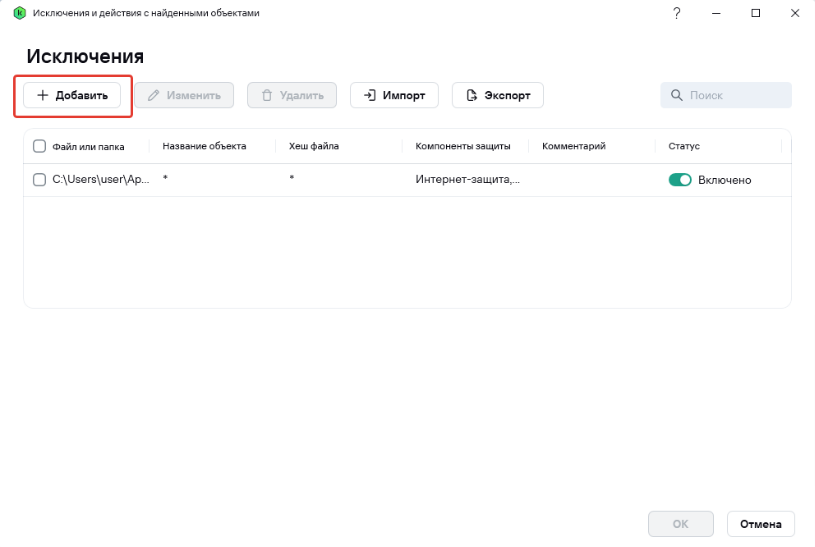
To add an exception, use one of the following methods:
- In the “File or Folder” field, manually enter the full path or a naming pattern for the file or folder.
- Alternatively, click "Browse" to navigate to and select the specific file or folder you wish to exclude from scans.
- Confirm with “Select.”
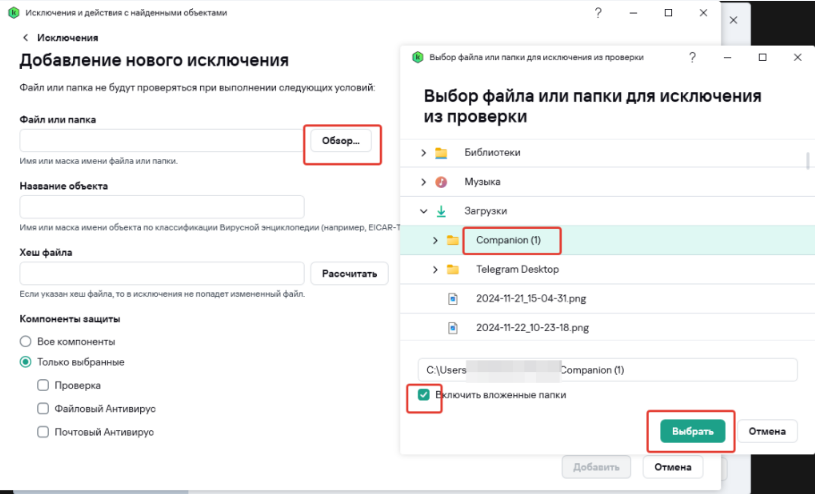
It is necessary to add the entire system drive (C:) to the exceptions list.
Next, configure the rule's scope. Uncheck specific protection components if the exception should not apply to them, or leave "All Components" selected. Finalize the configuration by clicking "OK."
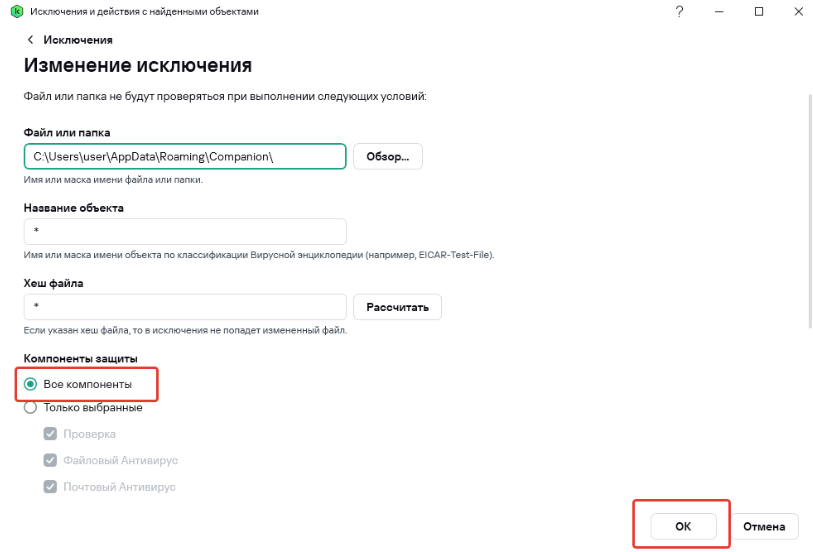
The specified objects will then be excluded from scanning. Verify that the exception status is Active.
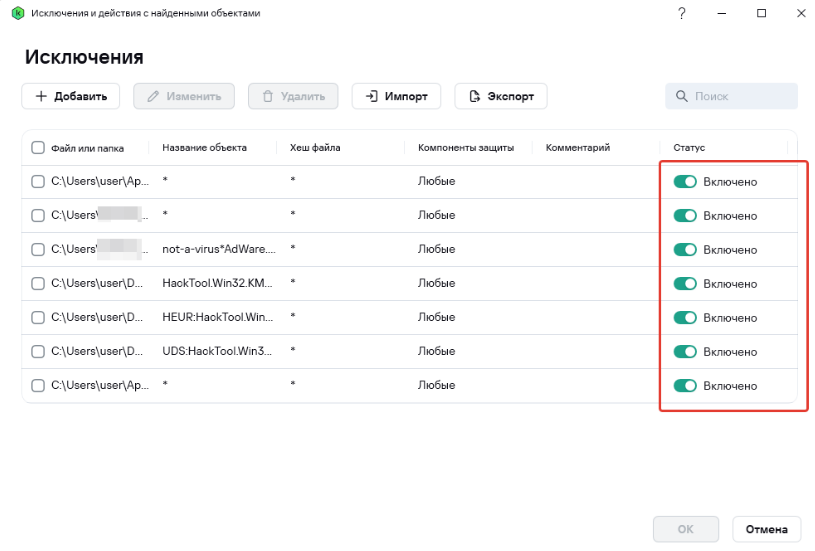
To remove an exception, select the relevant entry from the list and click "Delete."