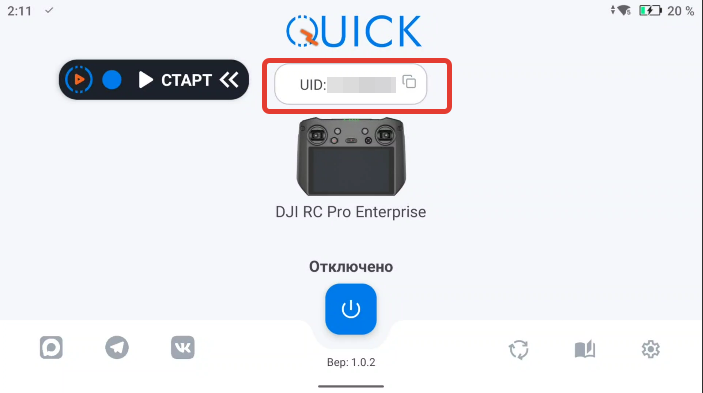
To start streaming in Solar, open the Solar Quick application and copy your device’s UID.
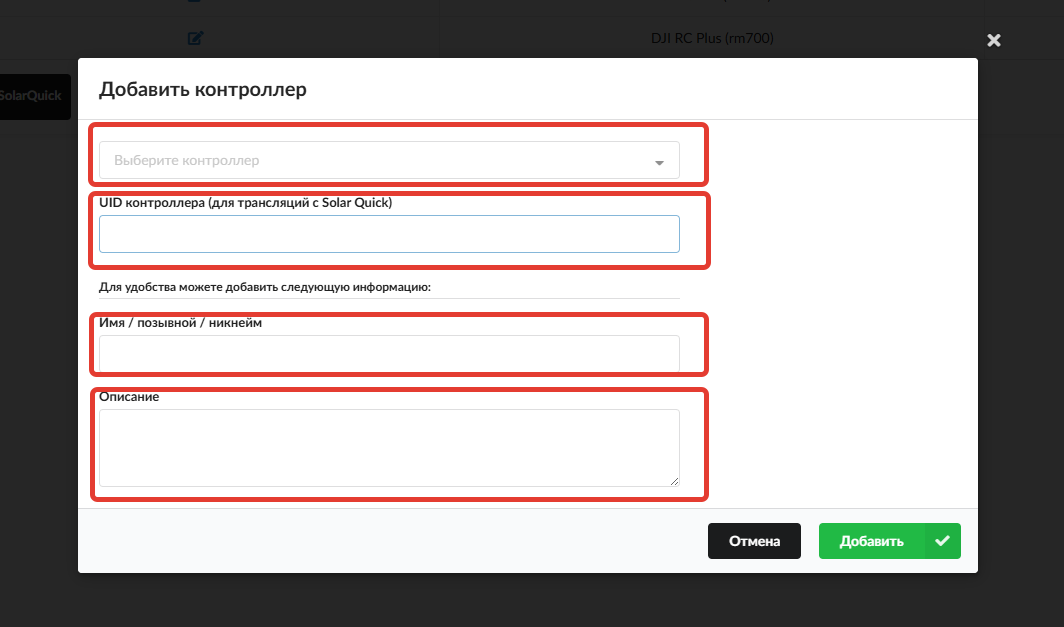
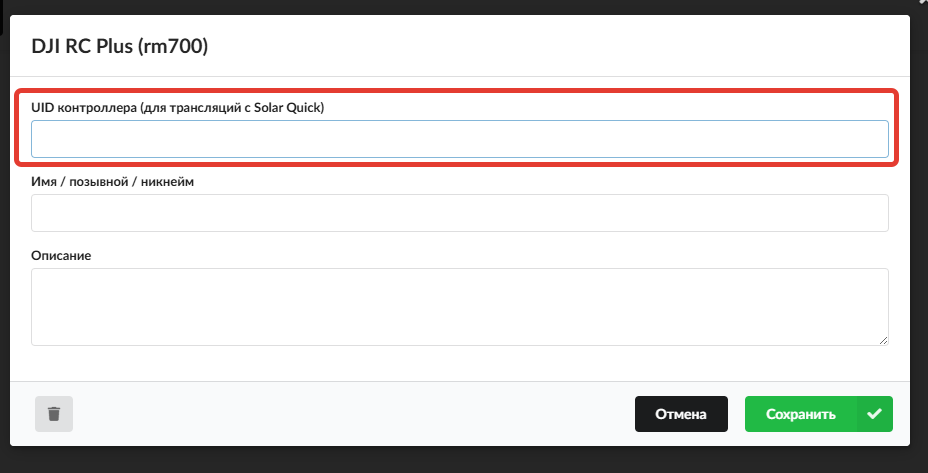
In Solar, go to the “Controllers” section, click “Add”, select the controller from the list of available DJI / Autel models, and enter the UID. For convenience, you can also add additional information about the controller — name and description. Then click “Add”.
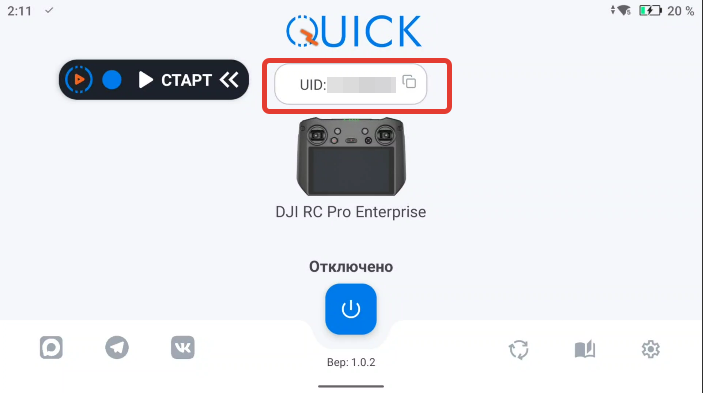
For controllers that have already been added, find the controller’s UID in the Solar Quick app.
In Solar, select the desired controller, click on “Name / Call Sign”, enter the UID in the corresponding field, and click “Save”.
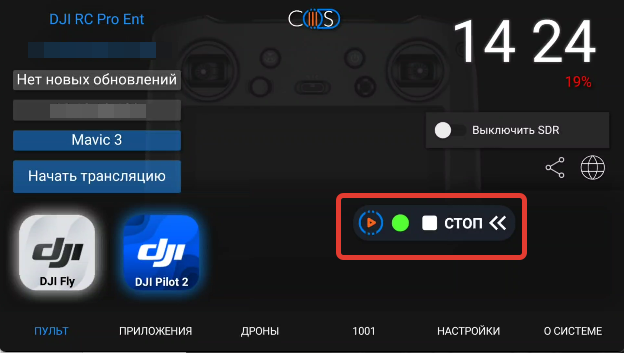
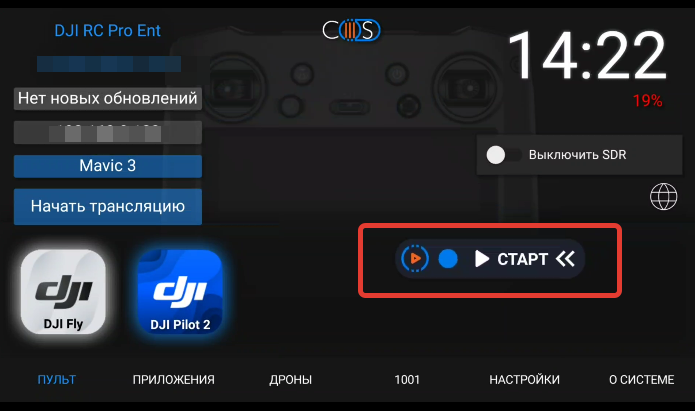
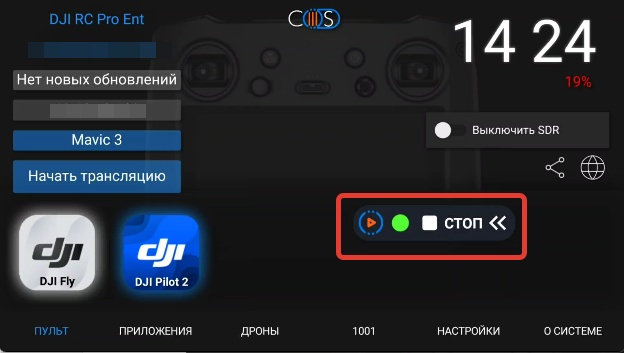
In the Solar Quick floating widget, press the “Start” button and wait for the green indicator to light up — once connected, the stream will automatically be available in your Solar dashboard.
If the broadcast does not appear, check that the entered UID is correct.
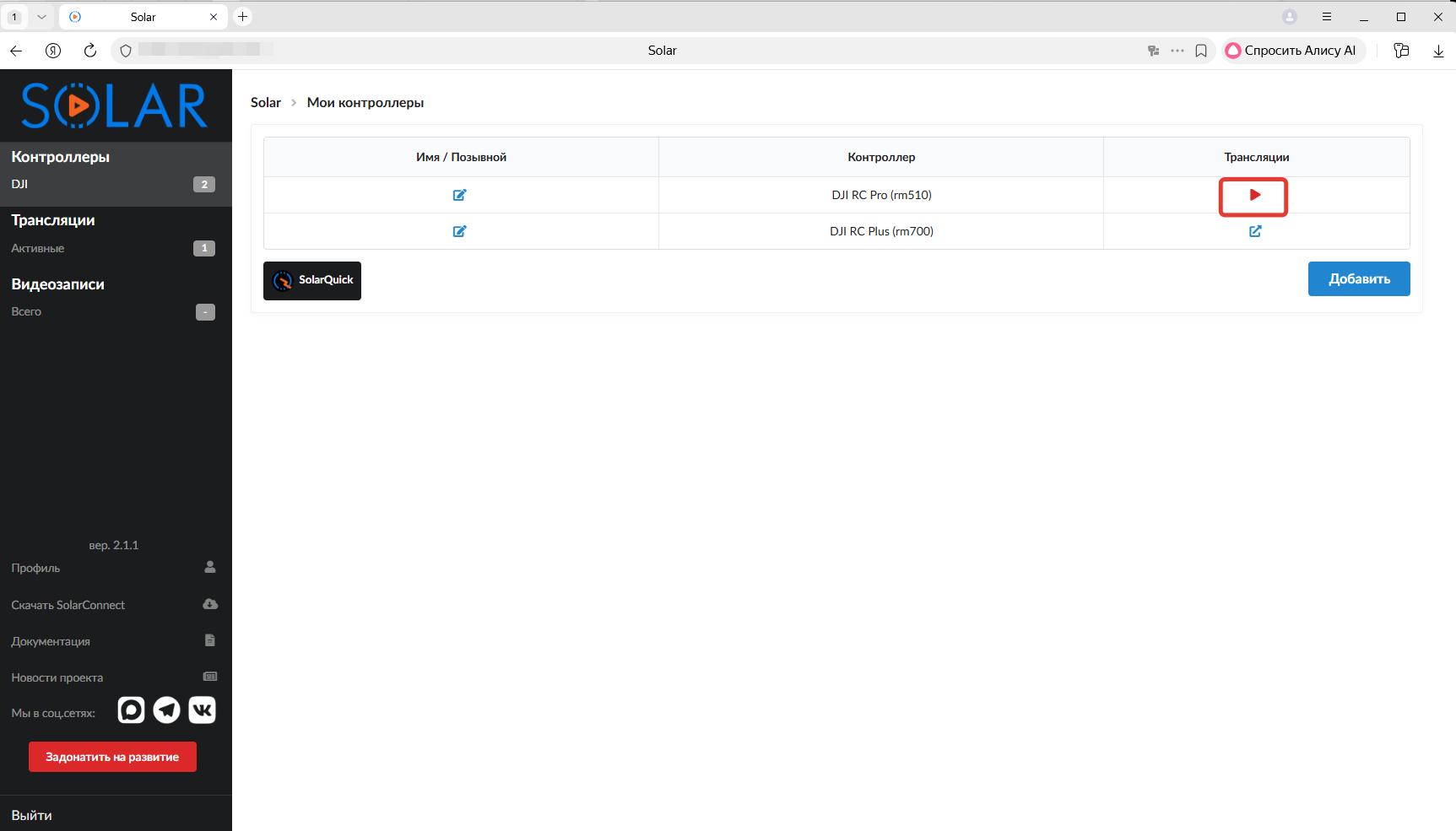
To view the stream, go to your Solar account and click the streaming icon for the corresponding controller.
You will enter the stream viewing window, where the side panel displays your controllers, and you can view the streams from them.
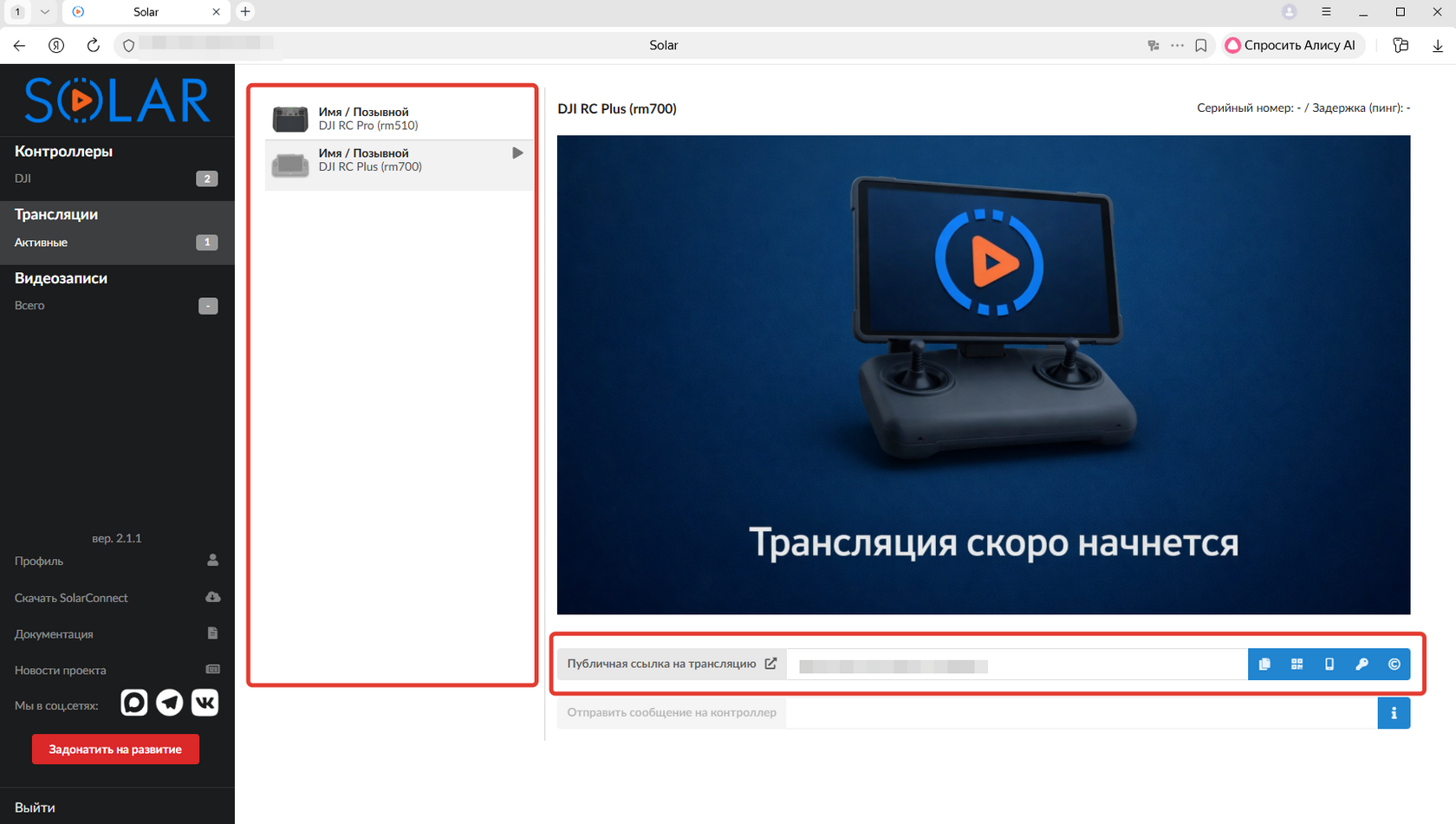
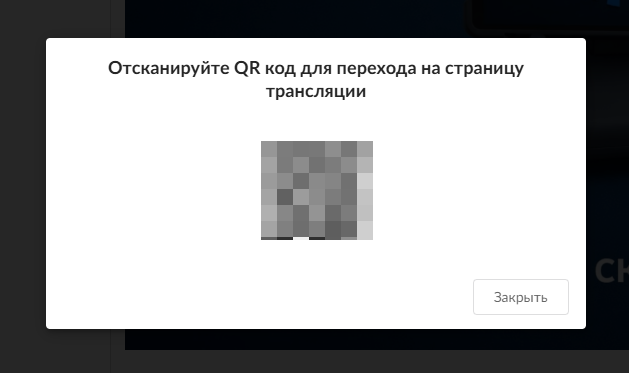
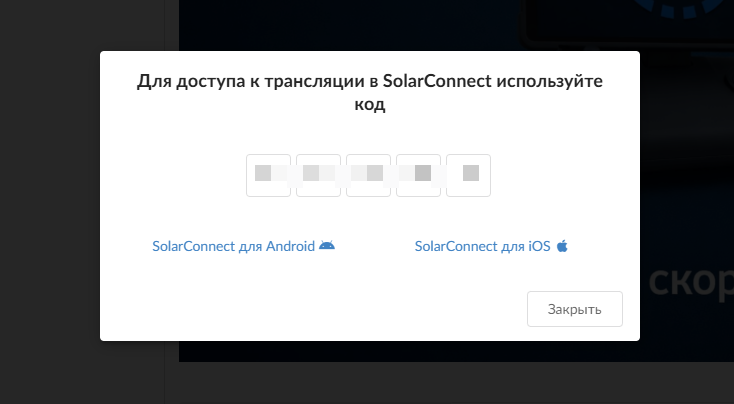
Below the streaming window, there is a public link that can be used to share the stream. Next to it are buttons to copy the link, open the QR code, get the code for embedding the stream in Solar Connect, and a button to enable password protection.
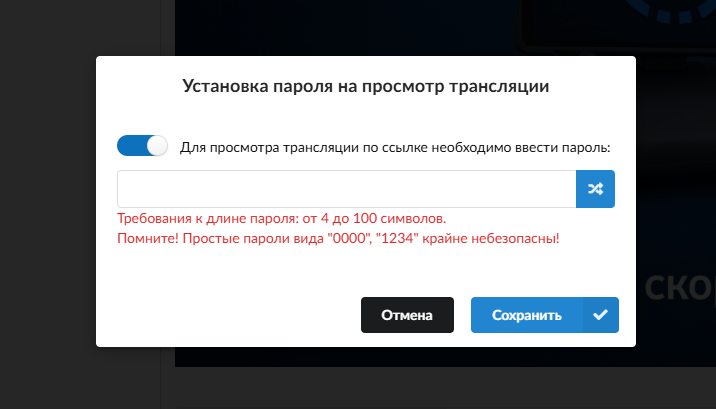
The password protection feature allows you to restrict access to the stream. You can generate a unique password automatically or set your own manually.
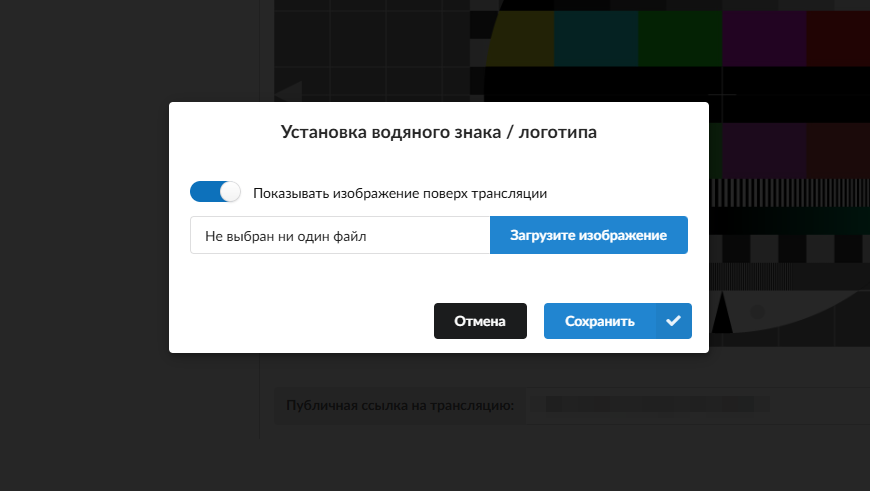
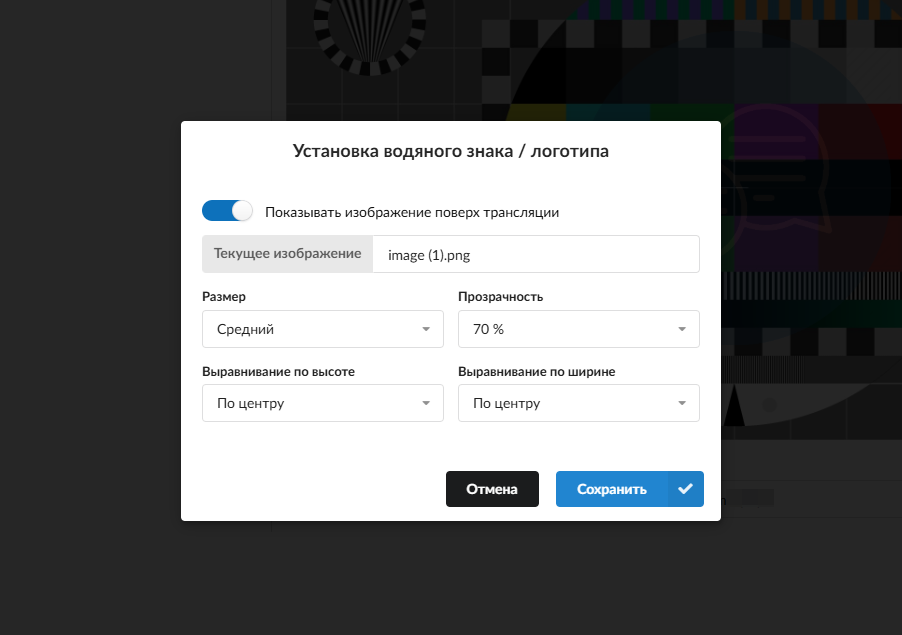
The watermark/logo feature allows you to upload and place a watermark or logo over the video stream, with options to adjust its size, position on the screen, and transparency level.
The 'Pager' function allows you to receive messages from your Solar account in the Solar Quick app, facilitating interaction between the platform and the controller.
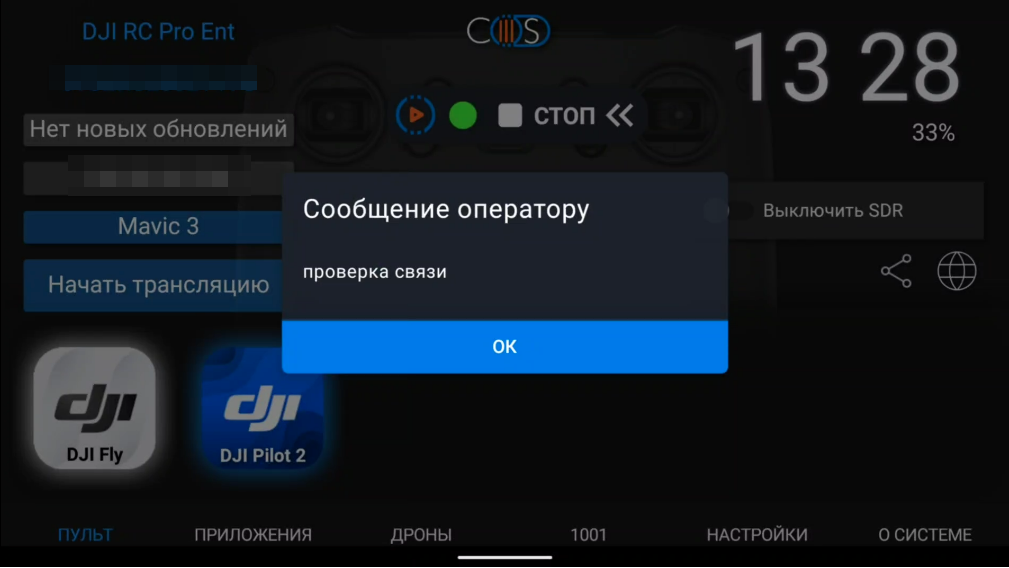
To stop the broadcast, press the 'Stop' button in the Solar Quick floating widget